The Battery is a CR2032 coin-type cell, which is available anywhere batteries are sold.
Before replacing the battery, turn off the CNC control, and shut down the OmniTurn with the at the spindle drive cabinet.
- It is possible to replace the battery by taking the blue cover off the control and on the lower right side of the control.
- If too difficult that way, remove the front panel and slide out the computer chassis.
If you are familiar with BIOS setting, the instructions are as follows:
- Power up or reboot the CNC, then press Del key to enter CMOS menu.
- Select Standard CMOS Features, then press Enter to open CMOS Features screen.
- Arrow down to Date and Time and set to current date and time.
- Press Esc to return to BIOS Main screen
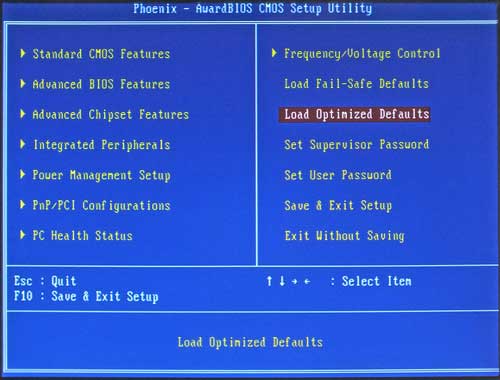
- Select Load Optimized Defaults, then press Enter to apply.
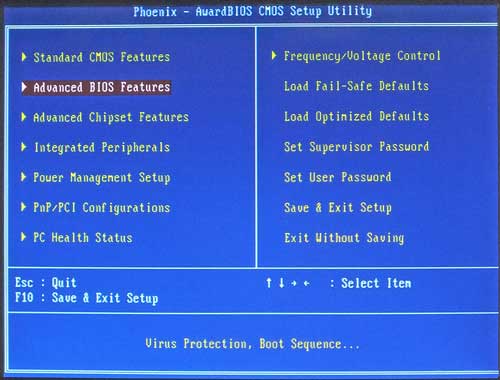
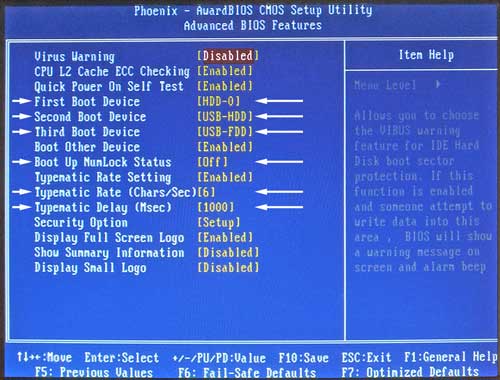
- Select Advanced BIOS Features, and set the following:
- 1st Boot Device: USB-HDD
- 2nd Boot Device: HDD-0
- 3d Boot Device: USB-FDD
- Bootup Numlock Status: Off
- Typematic rate: 6
- Typematic delay: 1000
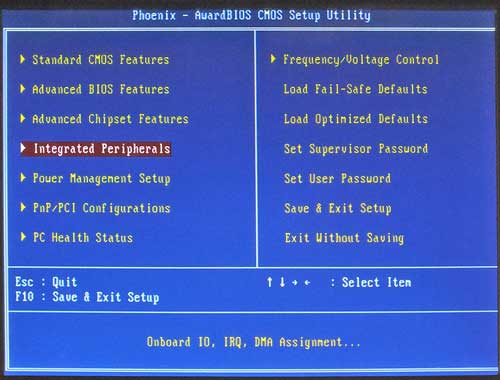
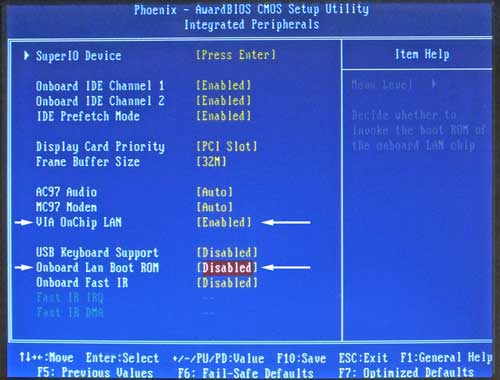
- Select Integrated peripherals, and DISABLE Onboard LAN Boot ROM.
- Verify that VIA OnChip LAN is ENABLED.
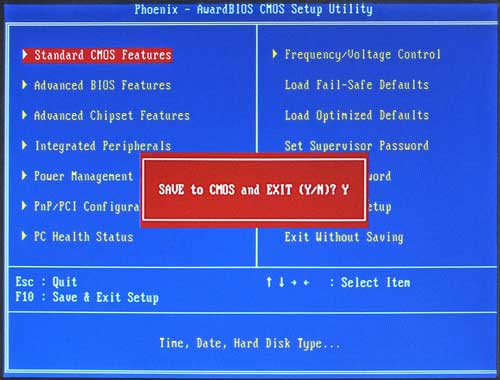
- Save and exit CMOS
If you NOT are familiar with BIOS setting, screen shots and explanations follow:
Epia ML motherboard BIOS screens: Restore settings to factory default:
BIOS Main Screen:
Power up or reboot the CNC, then press Del key to enter CMOS menu.
Verify "Standard CMOS Features" is highligted, then press Enter to open Standard CMOS Features screen.
Standard CMOS Features screen:
Arrow down to Date and Time and set to current date and time.
Press Esc to return to BIOS Main screen
BIOS Main Screen:
Use arrow keys to highlight "Load Optimized Defaults", then press Enter.
Then press "Y".
Then press Enter again.
BIOS Main Screen:
Use down arrow to highlight "Advanced BIOS", then press Enter. Advanced BIOS Features screen should appear.
Advanced BIOS Features:
Use arrow keys to highlight each of the following six items. Use the "+" or "-" keys (or Page Up or Page Down keys) to change each value to match the list. Then press Esc key to return to Main Menu.
- 1st Boot Device: USB-HDD
- 2nd Boot Device: HDD-0
- 3d Boot Device: USB-FDD
- Bootup Numlock Status: Off
- Typematic rate: 6
- Typematic delay: 1000
BIOS Main Screen:
Use arrow keys to highlight "Integrated Peripherals", then press Enter. Integrated Peripherals screen should appear.
Integrated Peripherals screen:
Use arrow keys to highlight "Onboard LAN Boot ROM. Use the "+" or "-" keys (or Page Up or Page Down keys) to set it to Disabled.
Verify "VIA OnChip LAN is Enabled.
Press Esc to return to Main Menu.
BIOS Main Screen:
Press F10 to save and exit, then press Enter. CNC will reboot with the factory default settings.
 The Oregon Coast to show picture; click anywhere else to hide picture. (Apple IOS: refresh page)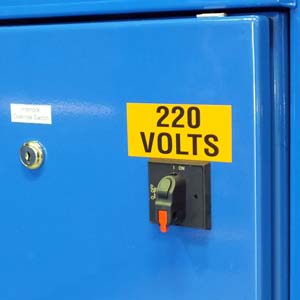
 CMOS Battery Through Porthole on the lower right side of the control.